
Inviting Team Members
To collaborate with your team on workflows, you can invite members to your organization. This guide walks you through the invitation process.
Prerequisites
- You must be logged in to app.chain.link
- You must have a role that includes the invite permission, such as Platform Admin or Owner
- The email addresses you're inviting must belong to whitelisted domains
Step 1: Navigate to Organization settings
In the left sidebar, click on "Organization".
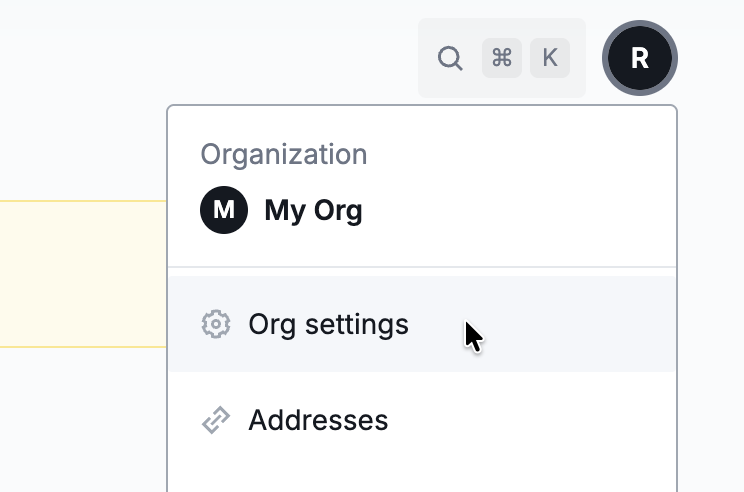
Step 2: Go to the Members tab
Click on the "Members" tab to view your organization's members.

Step 3: Start the invitation process
Click the "Invite" button in the top right corner.

Step 4: Add team member details
Enter the email address of the person you want to invite, and set their roles for each product. You can only set roles for products that you have access to. If you don't have access to a product, or your role lacks sufficient permissions for it, you won't be able to assign roles or permissions for that product.
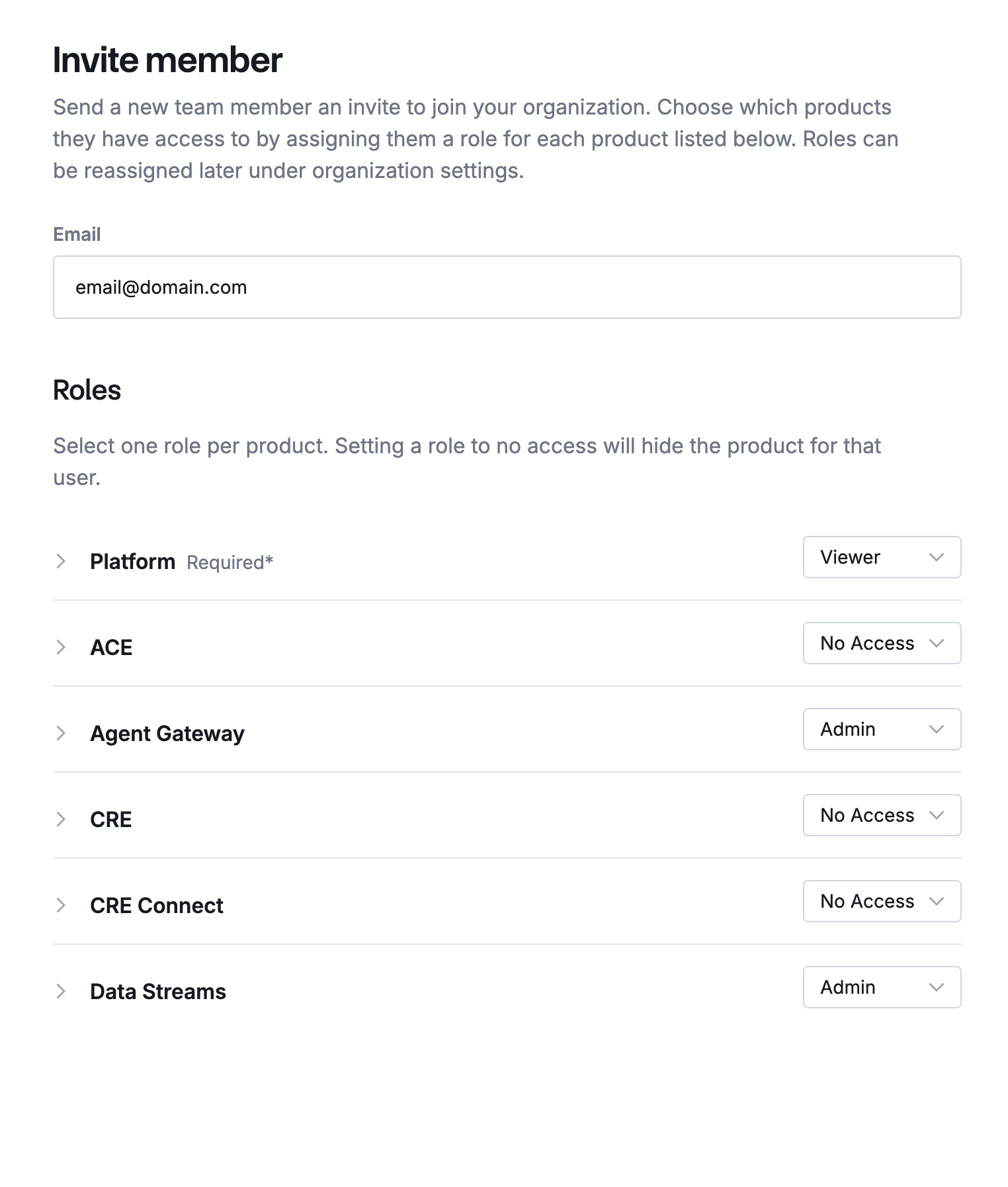
Step 5: Send invitations
Once you've set all the roles you want to define for the invited member, click the "Submit" button in the bottom right corner.

The invited members will receive an email invitation to join your organization.
What happens next?
After you send invitations:
- Email notification: Each invited person receives an email with instructions to join your organization
- Account creation: If they don't have a Chainlink Platform account yet, they'll be invited to create one
- Automatic membership: Once they complete account creation, they'll automatically become members of your organization. No additional acceptance step is required.
- Access: They'll immediately have access to your organization's workflows and resources
Related guides
- Understanding Organizations - Learn about organization roles and permissions
- RBAC - Learn about member roles and what each role can do
- Linking Wallet Keys - Help new members connect their wallets